To enhance your account security, BTSE Indonesia offers Google Authenticator (2FA) as an additional layer of protection for logging in and performing important account activities.
Before You Start Make sure you have downloaded the Google Authenticator app from:
Google Play Store (Android)
Apple App Store (iOS)
How to Enable Google Authenticator
1. Start the 2FA Activation
Log in to your BTSE Indonesia account, then go to the Security menu and click Start 2FA Activation.
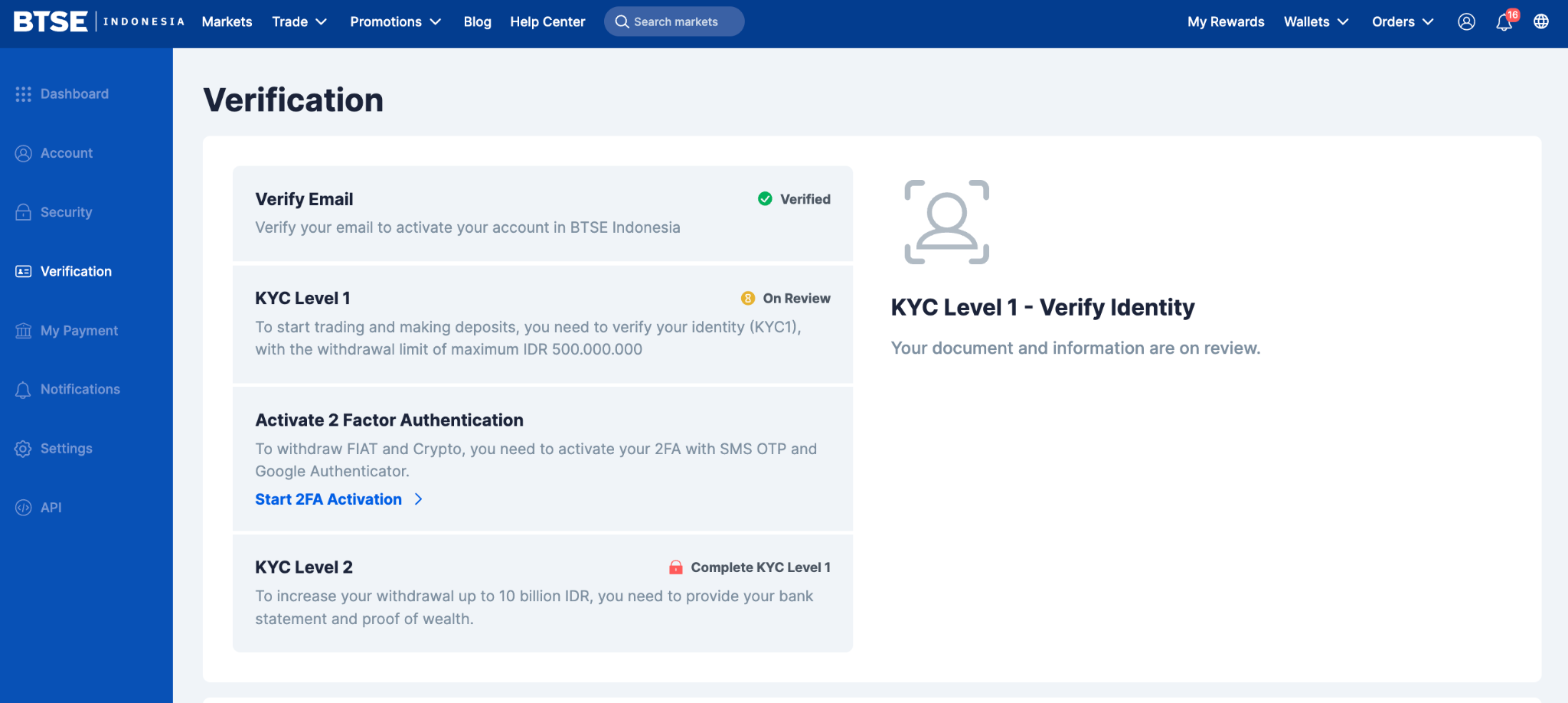
2. Open the Google Authenticator App
Launch the Google Authenticator app on your mobile device.
3. Scan the QR Code
In the Google Authenticator app, select Scan a QR Code, then scan the QR code displayed on the BTSE Indonesia website.
Once the QR code has been successfully added, click Next.
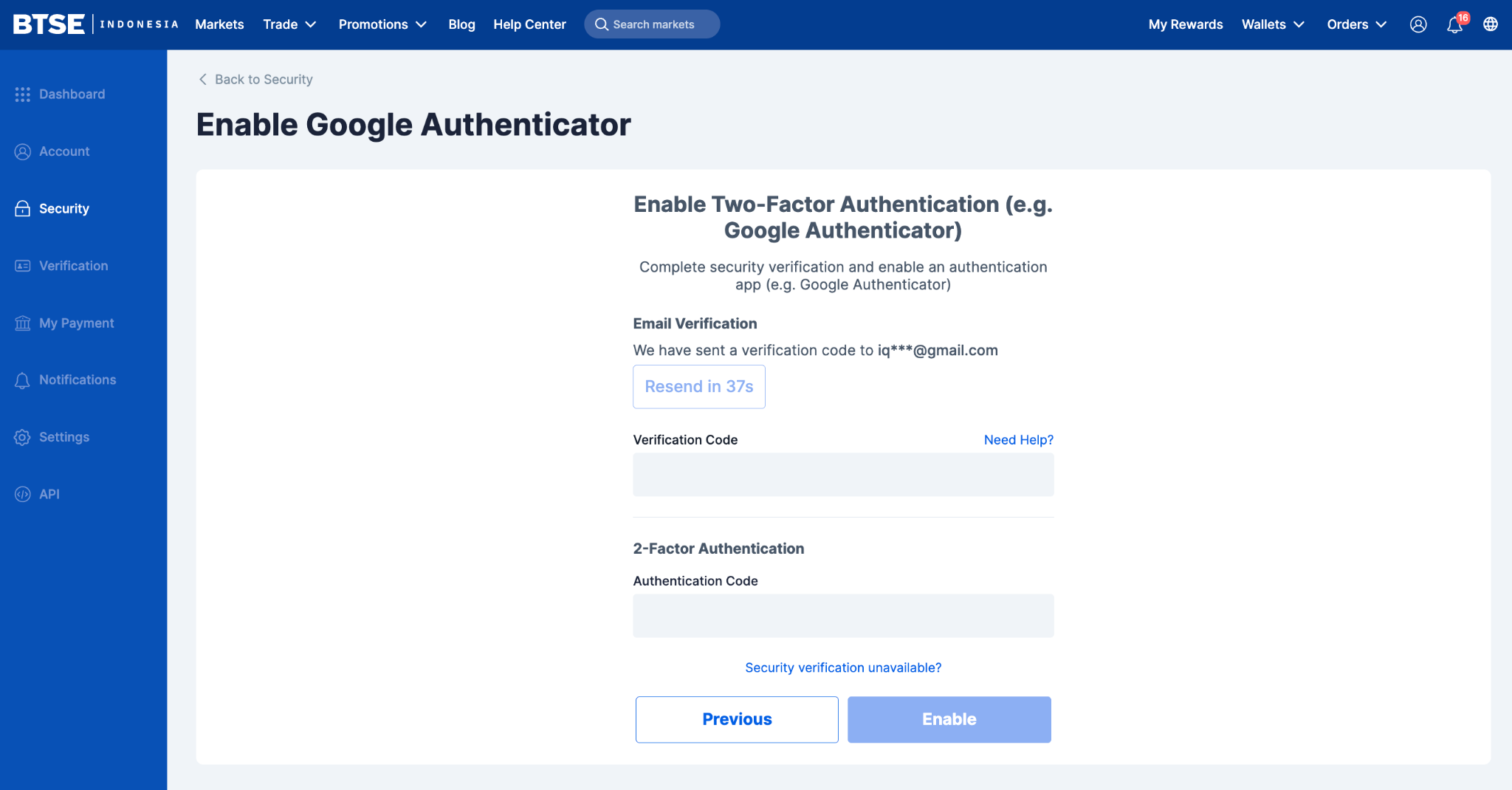
4. Verify the Activation
Enter the following verification codes:
The verification code sent to your registered email address.
The 6-digit code displayed in the Google Authenticator app.
Then click Enable to complete the activation process.
Activation Completed
Once activated, Google Authenticator will be used as one of the security verification methods for your BTSE Indonesia account.
Important Notes
Save your Secret Key or Recovery Key in a secure place during the activation process. This key can be used to restore access if you lose your device or uninstall the Google Authenticator app.
Never share your Google Authenticator code or Secret Key with anyone, including individuals claiming to represent BTSE Indonesia.
Ensure your device's date and time are set automatically to prevent synchronization issues with Google Authenticator codes.
If you experience any issues while enabling Google Authenticator, please contact BTSE Indonesia Customer Support for further assistance.

