Do you have a liveness issue such as the picture below ?
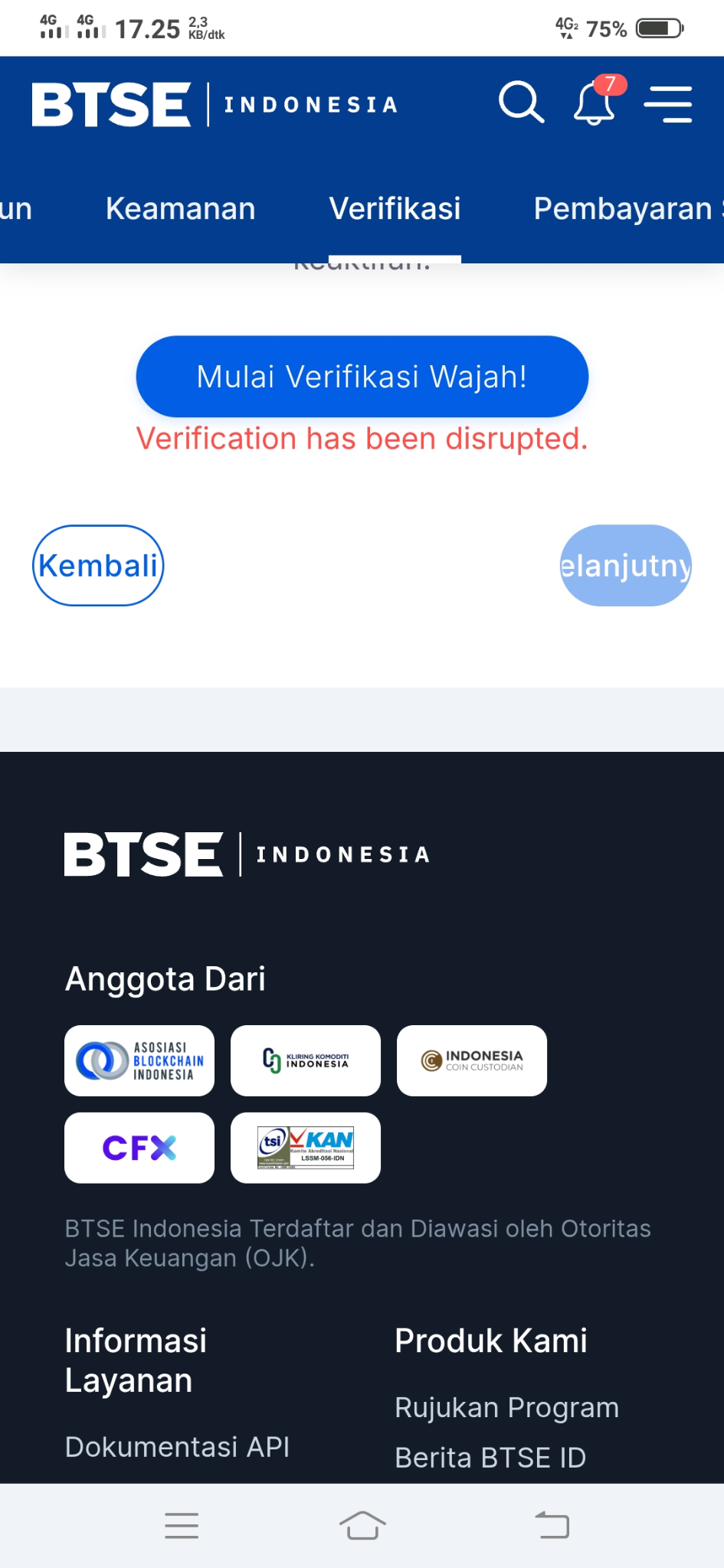
If you're experiencing issues completing Liveness Verification through the BTSE Indonesia mobile website, don't worry. When using a mobile browser, the verification process requires your device to remain stable so the system can accurately detect your face.
Follow the tips below to improve your chances of completing the verification successfully.
Tips for a Successful Liveness Verification
1. Allow Camera Access
Make sure your mobile browser has permission to access your device's camera.
If camera access is blocked or denied, the verification process cannot proceed.
2. Keep Your Device Steady
Hold your device as still as possible during the liveness verification.
Even slight movements may cause the verification to fail, as the system needs to detect your face consistently throughout the process.
3. Make Sure Your Face Is Clearly Visible
Before starting the verification, ensure that:
Your entire face is clearly visible.
You are not wearing a mask.
You are not wearing a hat.
You are not wearing sunglasses or any accessories that cover your face.
4. Use Good Lighting
Complete the verification in a well-lit environment.
Avoid areas that are too dark or have strong backlighting, as this may affect facial recognition accuracy.
5. Follow the On-Screen Instructions
During the verification process, carefully follow all instructions displayed on the screen, such as:
Turn your head to the left or right.
Open your mouth.
Keep your face within the designated frame.
Still Having Trouble?
If you are still unable to complete the liveness verification on the mobile website, you can try one of the following alternatives:
Use the BTSE Indonesia mobile app, available on the Google Play Store and Apple App Store.
Access the BTSE Indonesia website using a laptop or desktop computer and complete the verification there.
If the issue persists after trying the steps above, please contact BTSE Indonesia Customer Support for further assistance.
Important Notes
Ensure you have a stable internet connection throughout the verification process.
Clean your camera lens before starting the verification.
Use the front-facing camera for the best results.
Make sure no one else is visible in the background during the verification.
Do not switch apps, change browser tabs, or close the browser while the verification is in progress.

